Introduction
Many applications generate logs in text files and store them in different file paths rather than using standard logging services like Windows Event Log or Syslog. This can create challenges in security monitoring and analysis, as these logs are not directly accessible in Microsoft Sentinel.
The Azure Monitor Agent (AMA) addresses this issue by enabling log collection from text files—regardless of their format—on both Windows and Linux machines. Additionally, AMA allows real-time data transformation during ingestion, making log parsing and analysis more efficient.
With AMA, you can:
✅ Collect application logs stored in custom text files.
✅ Transform and parse logs during ingestion into different fields.
✅ Ingest logs from multiple paths across different systems into Microsoft Sentinel.
This guide walks you through a step-by-step process to configure custom log ingestion from text files stored in different paths using the Custom Logs via AMA data connector.
🔍 Prerequisites
Before configuring the data ingestion, ensure that:
- The Azure Monitor Agent (AMA) is installed on the VM(s) from which logs will be collected.
- You have appropriate permissions (such as Security Administrator or Log Analytics Contributor) to configure Data Connectors and Data Collection Rules (DCRs).
🚀 Step-by-Step Guide to Ingest Custom Logs via AMA
1️⃣ Access Microsoft Sentinel Data Connectors
In the Azure Portal:
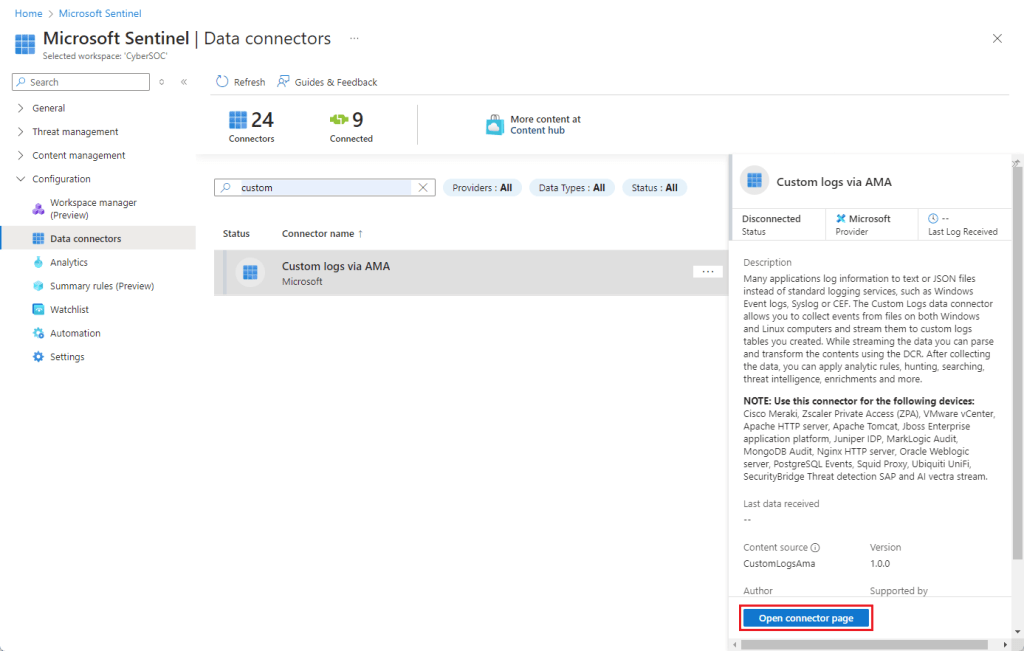
- Navigate to Microsoft Sentinel in the Azure portal.
- Under Configuration, select Data connectors.
2️⃣ Select the Custom Logs via AMA Connector
- In the Search box, type
custom. - From the results, select Custom Logs via AMA.
- Click Open connector page.
3️⃣ Create a Data Collection Rule (DCR)
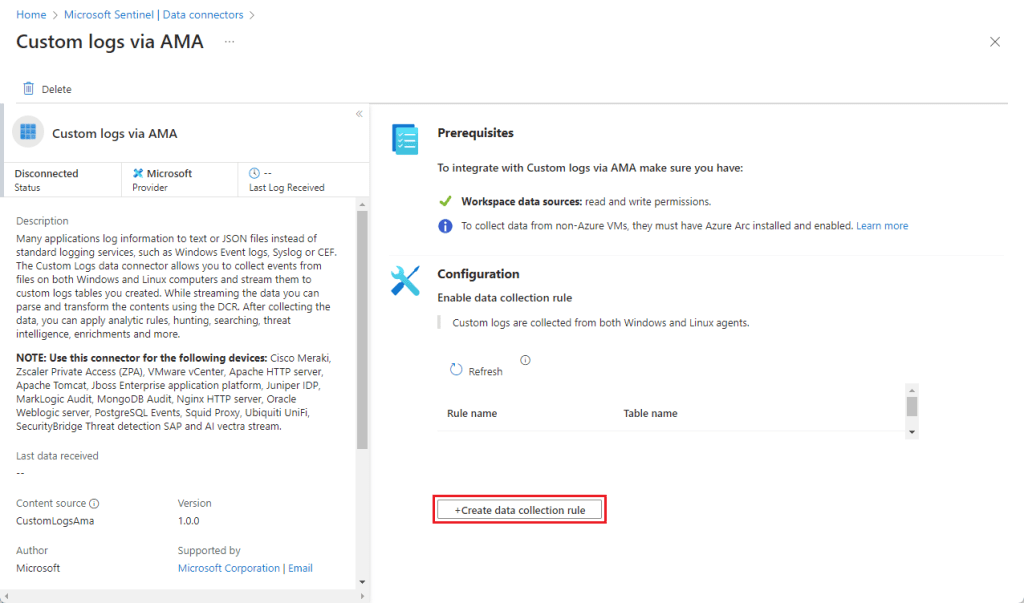
- In the Configuration area, select +Create data collection rule.
- In the Basic tab, enter the following details:
- 🏷 DCR Name: Provide a descriptive name for the Data Collection Rule.
- 🔹 Subscription: Select your Azure subscription.
- 📁 Resource Group: Choose the resource group where you want to store this DCR.
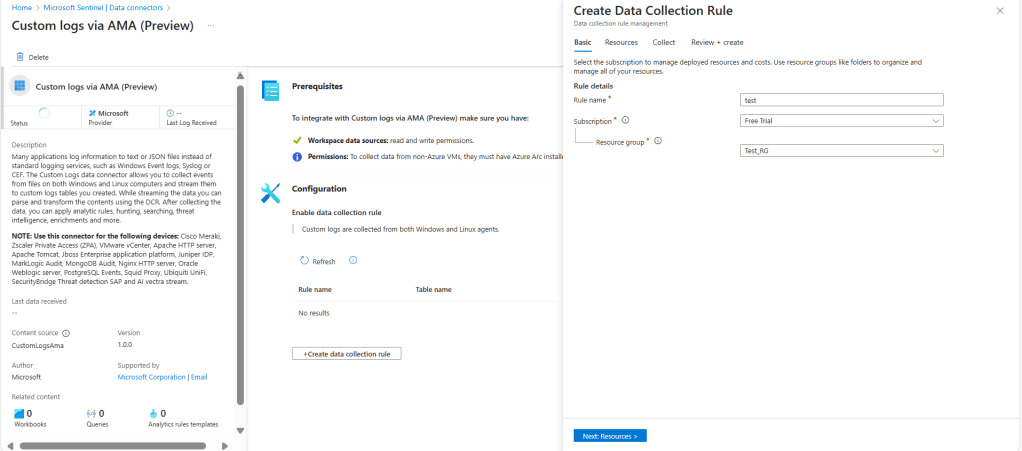
- Click Next: Resources >.
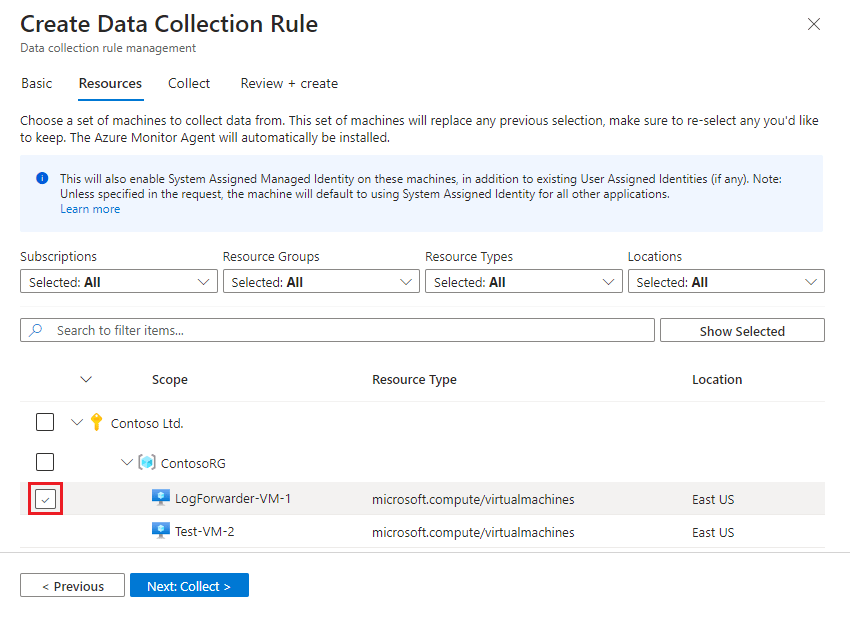
4️⃣ Define VM Resources
- In the Resources tab, select the Virtual Machines from which logs need to be collected.
- These could be application servers or log forwarders.
- Review your selections and click Next: Collect >.
5️⃣ Configure Data Collection for Your Application
- In the Collect tab:
- From Select device type (optional), choose your application or device type.
- If your application is not listed, select Custom new table.
- Configure table settings:
- Table Name: If using a custom table, enter a name ending with
_CL. - File Pattern: Provide the full path and filename of the logs to be collected.
- Example:
/var/log/app_logs/*.log - Wildcards can be used in filenames (e.g.,
*.log).
- Example:
- Table Name: If using a custom table, enter a name ending with
- In the Transform field:
- If using a custom table, enter a Kusto Query Language (KQL) transformation.
- If using a predefined device type, the transformation is pre-configured and should not be modified.
- Possible values:
source(default, no transformation)source | project-rename Message=RawData(for logs forwarded via a log forwarder)
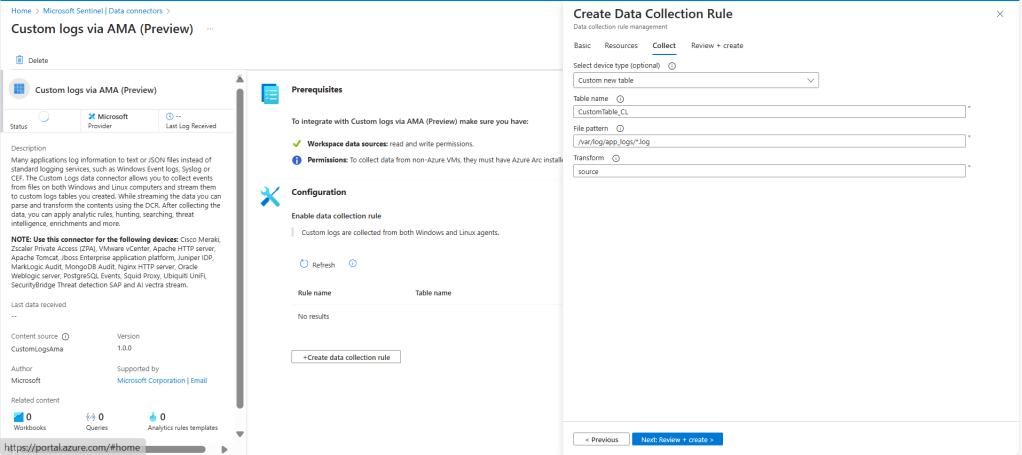
- Click Next: Review + Create.
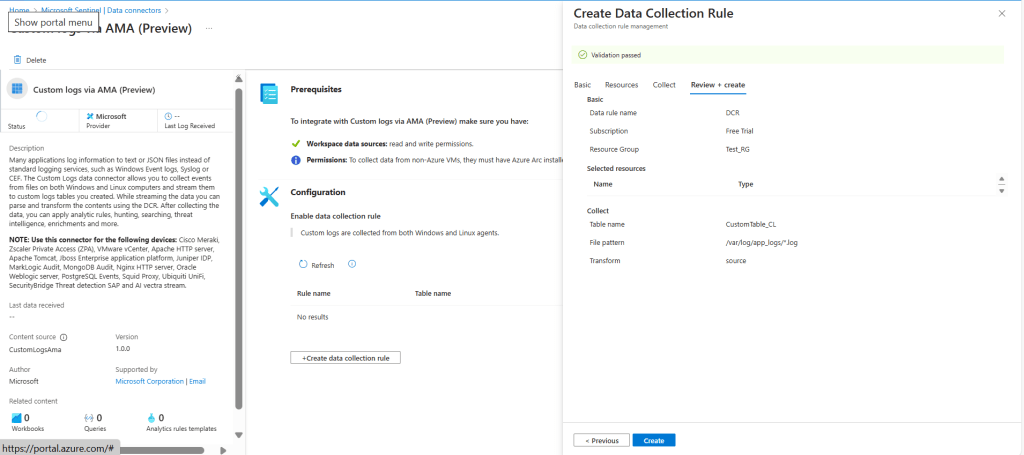
6️⃣ Review and Create the Data Collection Rule
- Review all configurations.
- Click Create to finalize the Data Collection Rule.
✅ Verifying Data Ingestion in Microsoft Sentinel
After a few minutes, verify that the logs are being ingested:
- Go to Microsoft Sentinel > Logs.
- Run a query to check if data is arriving:
CustomTable_CL | limit 10 - If no logs appear, verify:
- The log files exist in the defined path.
- The AMA agent is running on the VM.
- The correct file path and table name were configured.
🎯 Conclusion
The Custom Logs via AMA data connector provides a flexible way to ingest application logs and custom text logs into Microsoft Sentinel. By following these steps, security teams can efficiently integrate specific log sources, enabling enhanced threat detection and security monitoring.
Check out my youtube channel
📌 Next Steps
✅ Explore KQL queries to analyze the ingested logs.
✅ Set up alert rules based on the collected log data.
✅ Automate responses using Microsoft Sentinel Playbooks.
💡 Have any questions or need further guidance? Let me know in the comments below! 🚀
 SecByte
Leave a comment