

If you’re using Terraform to deploy resources in Azure, you’ve probably seen a file called terraform.tfstate in your project folder.
This file keeps track of everything Terraform creates, acting as its “memory.”
By default, this state file is stored locally, which is okay if you’re working alone on a test environment.
But in real projects—especially with a team—this is risky.
This guide will walk you step by step through storing Terraform state remotely in Azure Blob Storage, so your state file is:
✅ Secure
✅ Shared
✅ Automatically locked to prevent conflicts
Even if you are a complete beginner in Terraform or Azure, just follow along carefully.
✨ What is Terraform State?
Terraform state is simply a JSON file where Terraform records:
- What resources it created
- Their configuration
- Metadata like IDs, names, and properties
Whenever you run terraform plan or terraform apply, Terraform reads this file to understand what it previously deployed and what changed.
If you delete this file or it gets out of sync, Terraform loses track of your resources.
🚨 Why Local State is a Problem
- Accidental deletion: If your laptop crashes or you delete the file, your infrastructure tracking is lost.
- No collaboration: Teammates can’t see your state.
- Risky secrets: The state often includes sensitive information (like passwords or connection strings).
✅ That’s why professionals use remote backends to store state safely.
🟢 What is a Remote Backend?
A backend is simply where Terraform stores its state file.
Using Azure Blob Storage as your backend provides:
- Shared access for teams
- Automatic state locking (to prevent corruption)
- Encryption at rest
- Easy backup and recovery
✨ Step 1 – Create Azure Storage for Terraform State
You’ll need:
✅ A Resource Group
✅ A Storage Account
✅ A Blob Container
Tip: If you don’t have the Azure CLI installed, install it first:
Download Azure CLI
Open PowerShell, and log in:
az login
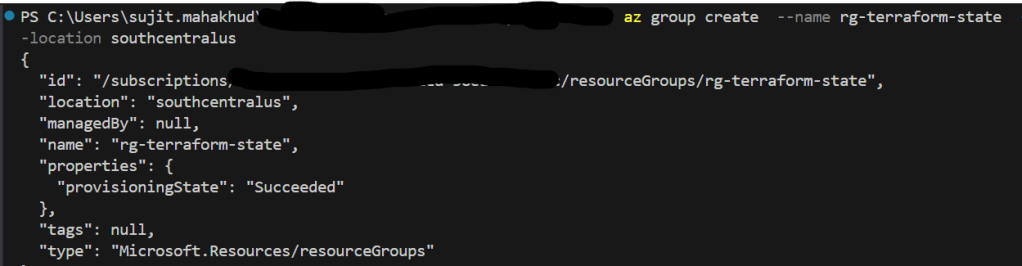
📌 Create a Resource Group
az group create --name rg-terraform-state --location southcentralus
📌 Create a Storage Account
Important:
Storage account names must be globally unique.
In this example, replace mytfstatestorage123 with your own unique name.
az storage account create `
  --name mytfstatestorage123 `
  --resource-group rg-terraform-state `
  --sku Standard_LRS `
  --encryption-services blob `
  --https-only true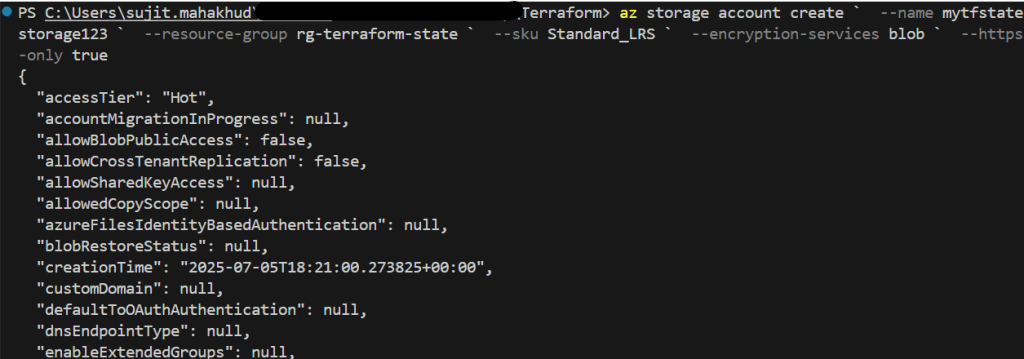
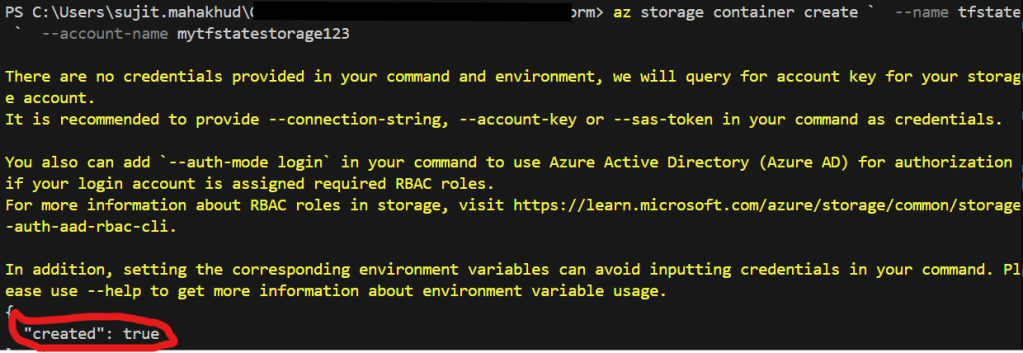
📌 Create a Blob Container
az storage container create `
  --name tfstate `
  --account-name mytfstatestorage123
✨ Step 2 – Configure Terraform Backend
In your Terraform project folder, create a file called backend.tf.
Paste this configuration:
terraform {
  backend "azurerm" {
    resource_group_name  = "rg-terraform-state"
    storage_account_name = "mytfstatestorage123"
    container_name       = "tfstate"
    key                  = "prod.terraform.tfstate"
  }
}
✅ What does this mean?
resource_group_name: The resource group you createdstorage_account_name: Your storage accountcontainer_name: The container for storing statekey: The blob name (think of this as the filename)
✅ Important:
Do NOT hard-code credentials in this file. Terraform can authenticate using:
- Your Azure CLI login (
az login) ✅ easiest - A Service Principal
- A Managed Identity
If you prefer using an access key, here’s how to set it securely:
📌 Retrieve the Storage Account Key
$accountKey = (az storage account keys list `
  --resource-group rg-terraform-state `
  --account-name mytfstatestorage123 `
  --query "[0].value" `
  --output tsv)
📌 Set the Environment Variable
$env:ARM_ACCESS_KEY = $accountKey
This tells Terraform to use this key without storing it in code.
✨ Step 3 – Initialize Terraform
Run:
terraform init
Terraform will:
- Detect your backend configuration
- Prompt you to migrate any local state
- Store state remotely in Azure
✅ Example Prompt:
Do you want to copy existing state to the new backend?
Enter "yes" to copy and "no" to start with an empty state.
✅ Type yes to migrate.
✨ Step 4 – Apply Your Terraform Code
Run:
terraform plan
and then:
terraform apply
Terraform will:
- Create any resources
- Save your state in Azure Blob Storage
✅ Screenshot Tip: Show the Azure Portal displaying the blob prod.terraform.tfstate.
🛡️ Security Best Practices
✔ Never hard-code your keys into .tf files.
✔ Restrict access to the Storage Account:
- Use Role-Based Access Control (RBAC).
- Restrict to specific networks with firewall rules or Private Endpoints.
✔ Version Control:
Never commit state files or credentials to Git.
✔ Use Azure AD Authentication:
Instead of an access key, consider authenticating with Azure AD or a Service Principal.
🧠 FAQ
Q: Can I have multiple environments?
Yes—simply change the key:
key = "dev.terraform.tfstate"
or
key = "stage/terraform.tfstate"
This keeps each environment’s state separate.
✅ Summary
You now have:
- A secure Azure Storage backend for Terraform
- State automatically locked during deployments
- A way to collaborate safely with your team
 SecByte
Leave a comment